

Pairing a kiosk tablet
What pairing is, why only a paired tablet places orders, how to pair one, device status, and what to do with a lost or replaced tablet.
What pairing is
Pairing makes a tablet your shop's kiosk. You enter a one-time code on the tablet, and that tablet's browser keeps a signed cookie that says it is your kiosk. There is no app to install and no account or sign-in on the tablet. The code is 8 characters (like K7M2-QX9P), works once, and expires after 10 minutes. The pairing itself lasts about 400 days and renews while the tablet is in use.
Why it's needed
Customers pay at the register, so your order queue should only hold orders placed in the shop. Your kiosk address is public: anyone can open /kiosk/{your-workspace} on any device. Without pairing, anyone with the address could put unpaid orders in your queue from home. Pairing is how ThreadReady knows an order came from your counter.
If you want customers to order on their own phones as well, that is a separate setting, off by default. See Letting customers order from their phones.
What only a paired tablet does
- Places orders. On any other browser the kiosk has no Submit order; the customer saves the design instead (while Allow saved home sessions is on), unless you take orders from customers' phones.
- Starts over by itself. After the idle reset time it shows a Still there? countdown, then clears the design and goes back to the welcome screen. The order screen clears itself too, so the next customer never sees the last one's design.
- Has its own idle reset, if you want one tablet to wait longer than the rest (see Session settings).
- Prints receipts, if your shop prints them and you turn on Prints receipts for that tablet (see Printing receipts and labels).
- Shows Online or Offline and when it was last seen in Settings → Kiosk, so you notice when a tablet drops off.
- Takes orders at counter speed. A paired tablet can place up to 120 orders every 10 minutes.
- Can be revoked if it's lost or stolen. It stops placing orders at once, and within about two minutes it shows This tablet needs to be paired again.
Any other browser
A customer's phone, a laptop at home or a staff computer can browse, design and save a design to finish at the shop (see Saved designs), unless you turn off Allow saved home sessions. Its welcome screen says This browser isn't a shop kiosk: you can design and save, then finish at the counter (with saving turned off: you can try designs here, then order at the counter), so staff trying the kiosk on their phone aren't surprised when Submit order is missing. If such a browser tries to submit anyway, it is told "Orders can only be placed on a paired shop kiosk. Save your design and finish at the shop." It never resets on its own, so a customer locking their phone doesn't lose their design.
While you take orders from customers' phones, that notice isn't shown, because any browser can then place an order.
Pair a tablet
Owners and admins pair tablets.
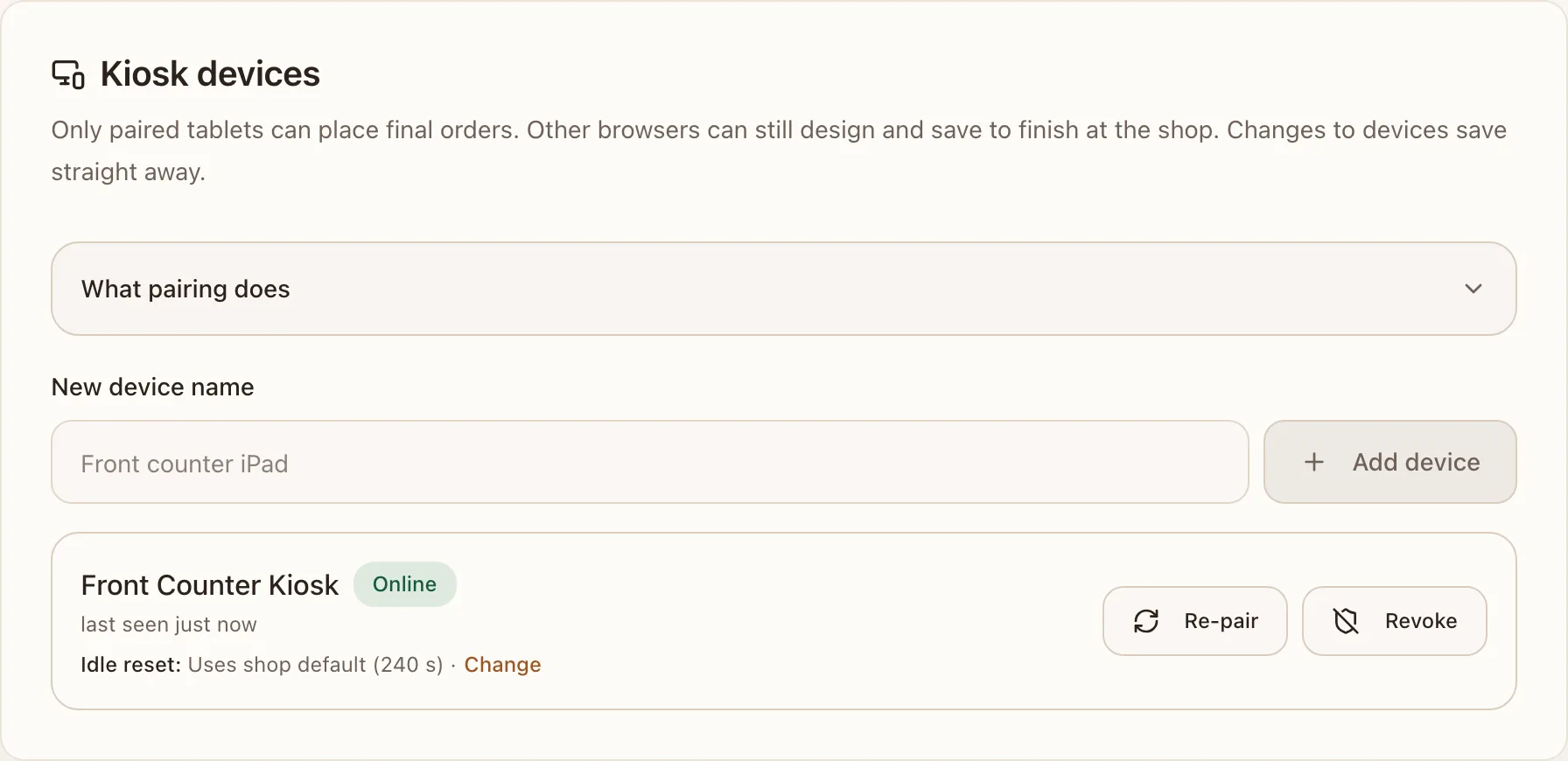
- Go to Settings → Kiosk → Kiosk devices, type a name under New device name (for example "Front counter") and press Add device. Each device needs its own name, up to 80 characters. You get a pairing code and a QR code.
- On the kiosk tablet, scan the QR code, or open the full pairing address shown next to the code (your ThreadReady address followed by
/kiosk/{your-workspace}/pair) and enter the code. The kiosk opens its welcome screen and confirms Paired as "Front counter". - The device shows as Online in Settings → Kiosk while the kiosk is open, and Seen recently for up to an hour after.
Pairing codes can be tried 10 times every 15 minutes from one network. If a code expires before you use it, press Pairing code on the device for a new one. Pairing a device is one of the steps on the dashboard setup checklist.
What pairing does, a collapsed note at the top of Kiosk devices, sums all this up for your staff.
Device status
Each device in the list shows its status:
- Online: the kiosk is open on it now (seen in the last 5 minutes).
- Seen recently: seen within the last hour; the kiosk page is closed or the tablet is asleep.
- Offline: not seen for over an hour.
- Paired: paired, but not seen since.
- Not paired: waiting for a tablet to enter its pairing code.
- Revoked: it can no longer place orders. Pair it again to reuse it.
More on the device list (each tablet's idle reset and receipt printing) is in Kiosk devices.
Lost, replaced or broken tablets
- Lost or stolen: press Revoke on the device and confirm with Revoke device. It stops placing orders straight away.
- Replaced: add the new tablet as a device and pair it, then revoke the old one. Or press Re-pair on the old device (on a revoked device, Pairing code) and enter the new code on the new tablet: once the new tablet is paired, the old one stops working as the kiosk.
- Shows "This tablet needs to be paired again": the tablet was revoked, or its device was re-paired on another tablet. Enter a new pairing code on that screen to put it back in service.
Good to know
- Pairing lives in one browser on one tablet. Clearing the browser's history or site data, a private window, or another browser on the same tablet is unpaired and needs pairing again.
- Pair the tablet the way it will run. If the kiosk runs from an icon on the tablet's home screen, open it from that icon and pair there, not in a browser tab. On an iPad, a home-screen web app may keep its cookies apart from Safari, so a tablet paired in Safari can be unpaired in the home-screen app. We haven't confirmed this on a real iPad yet.
- Changing your kiosk address doesn't unpair anything. Reload the tablet, and add the home-screen icon again from the new address (see Change your kiosk address).
- Staff don't need a paired tablet. The staff app runs on any signed-in computer, tablet or phone. Pairing is only for the customer kiosk.