

$100/mo
ThreadReady Kiosk
Customers personalize your designs on a tablet at the counter, approve a preview drawn from the real stitches and pay at your register. The order arrives ready to stitch.
- Free trial: 14 days, no card required.
- Demo: a live sample shop to try, with no signup or card.
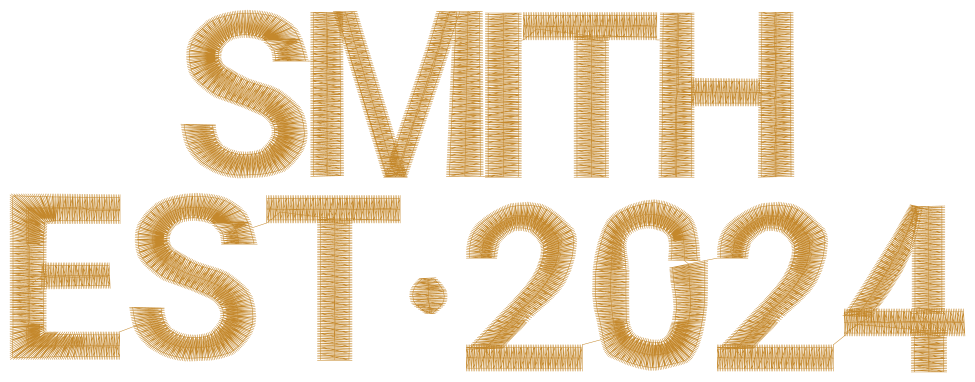
Type a name, pick a thread color, and try it on a different fabric
This demo shows a few controls. The real editor and kiosk also set letter spacing, size, layouts, monograms, envelopes and moving letters.
At the counter
What your customer does.
- 1
Walk up
Your welcome screen is waiting. No sign-in, no app.
- 2
Make it theirs
Pick a design, type the text, choose the font and thread.
- 3
Approve
They check the stitch preview and the price, then approve.
- 4
Pay at the register
They get an order number and a QR code to show you.
Included in the plan
Everything the kiosk does.
Open any item for the detail, and the help article that explains how to set it up.
Receipt QR and register scanning
No handwritten slip: scan the receipt and the order opens.
- The customer approves. The kiosk shows the order number, the total to pay and a QR code. It can email the receipt, and print it if you turn printing on.
- You scan it at the register. A USB or Bluetooth scanner works on any staff page and the order opens. Set the scan to Mark paid and each scan marks an order paid, one customer after another.
- The order is ready to stitch. Its machine file is ready to download in your shop's format (DST unless you change it), from the order or for a batch of orders as one ZIP.
- Scan it along. Scan modes move it to In production, Ready for pickup and Picked up. A move that isn't allowed still opens the order and says why.
The QR code is also the customer's proof link, so their phone opens the design they approved. Managing orders
Live stitch preview
Drawn from the real stitches, in the hoop, as they type.
The preview is built from the same stitch data as the machine file, in your thread colours, so what the customer approves is what you sew. The kiosk stops a design that can't be sewn, such as text too small for the font, before it is ordered.
Your BX fonts
Upload the fonts you already own and choose which the kiosk offers.
Upload BX or .oef font files, group their sizes into families and publish them when they are ready. Each font's smallest size comes from its own data. Monograms, arcs and multi-line text are built in. Creating designs
Thread palettes
Customers only pick threads you stock.
Set up your thread catalogue with brand names and colours, and choose the palette each design offers. Customers can colour each letter, and you can lock a field to one thread. Thread management
Live pricing
The total updates as the customer designs.
Price lists set a base price, stitch-count pricing, thread surcharges, an optional minimum and rounding; shop products add their own price. The server prices every order again, and the customer pays the total at your register. Products and pricing
Kiosk mode and pairing
A tablet becomes your kiosk with a one-time code.
Only a paired tablet can place orders, so your queue holds only orders placed in the shop, unless you turn on orders from customers' phones (off by default). Each tablet shows Online or Offline in Settings, resets itself after a set idle time and can be revoked if it goes missing. Your logo and colours are on the welcome screen. Kiosk setup
Receipts and proofs
Paperless by default: Email me my receipt.
The receipt email has the order number, the total (unless the shop hides prices), the approved design and a link to it. If staff correct text, font or thread after approval, the customer gets an updated proof and approves it before the order goes to production, unless you turn that off. Paperless receipts
Saved designs
Start at home, finish at the shop.
On their own phone or computer, customers design and save, then finish at your kiosk with a short code or a QR code. A design saved at the kiosk can go home on their phone too. Saved designs last 7 days. Saved designs
Orders, team and integrations
A queue for the counter and the back room.
The order queue shows every order by status, with search, a printable work order and a CSV export. Owners and admins set things up, members run orders, viewers can only look. Connect other systems with the REST API and webhooks. Team and permissions
Hardware
What you need at the counter.
A tablet or computer
Any current web browser. There is no app to install; pair it with a one-time code.
A stand
Whatever holds the tablet at a comfortable height on your counter.
A barcode scanner
USB or Bluetooth, one that reads QR codes and types like a keyboard. A phone or tablet camera works too.
A receipt printer (optional)
Off by default: receipts are emailed. If you print, the tablet prints through its browser.
We haven't tested specific tablets, scanners or printers yet, so we don't recommend models. Place a few test orders and check the QR code scans before you rely on one. What to look for: Kiosk hardware and barcode scanners. Setting up a printer: Printing receipts and labels.
Pricing
One plan for the Kiosk.
ThreadReady Kiosk
$100/mo
Everything in the kiosk included. Plus sales tax or VAT where it applies.
14 days free for your first shop. No card required.
What's included
- Unlimited orders and staff
- Live stitch preview
- Your BX fonts, threads and prices
- Receipt QR and register scanning
- Machine files: DST, PES, EXP, JEF
- Email receipts and proofs; printing optional
- Saved designs from home
- API and webhooks
Commerce and AI aren't part of this plan. They will be priced separately when they launch.
Questions about the Kiosk
Do customers need an account or an app?
No. They walk up and start from your welcome screen. There is nothing to sign in to or install.
Can I run more than one tablet?
Yes. Pair each one with its own code and name. Each shows Online or Offline in Settings → Kiosk, can print or not, and can be revoked on its own.
What if the page refreshes, or a customer walks away?
A refresh brings the design back on the step they were on; their contact details are never stored on the tablet. After the idle time you set (4 minutes unless you change it), the kiosk clears itself for the next customer.
Can I use it without a printer?
Yes, that is the default. Customers email themselves the receipt or show the screen, and you scan the QR code or search the order number.
Can an order be changed after the customer approves it?
Staff can correct the text, font and thread. Unless you turn it off, the customer gets an updated proof and approves it before the order goes to production. Every change is kept in the order’s history.
What if my subscription lapses?
The kiosk stops taking new orders, but your team can still finish the ones already placed: scan, change statuses and download files. Subscribe again and everything comes back.
They approve it. You stitch it.
Put the kiosk on your counter.
Set up your first design in minutes, or try the demo first: a live sample shop with no signup or card.
Explore the platform
One engine, more tools.